
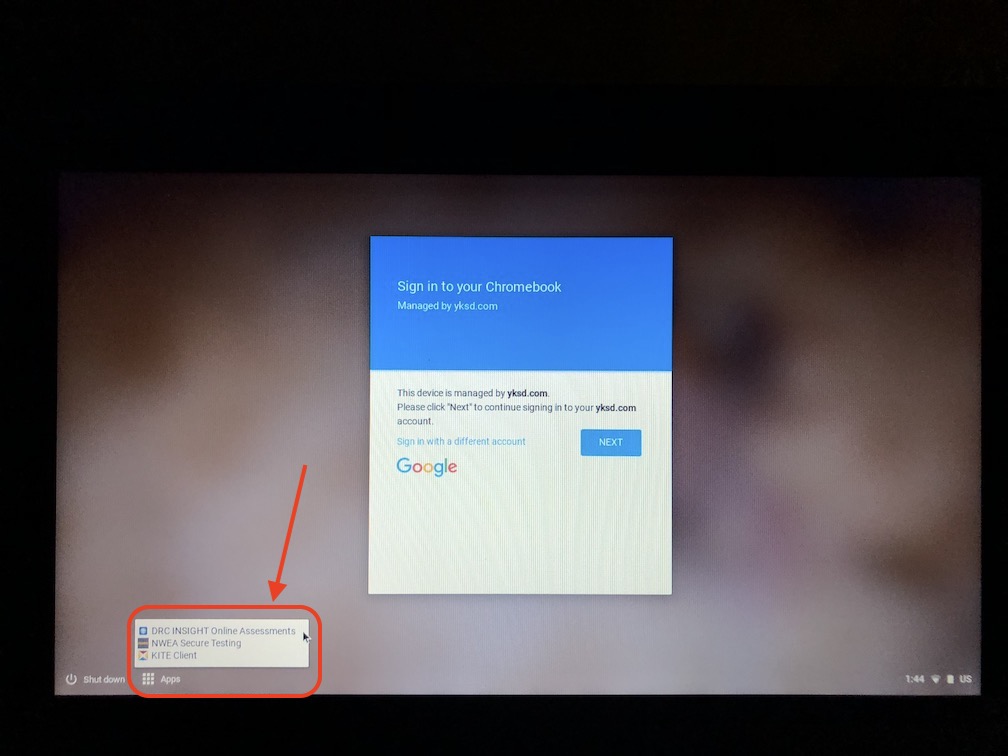
To access the DRC INSIGHT state test on a Chromebook, log out if any users are signed in. If you are just booting up the Chromebook, don't sign in. Click on the Apps button in the lower left next to the Shut Down button, and select "DRC INSIGHT Online Assessments" from the pop-up list:
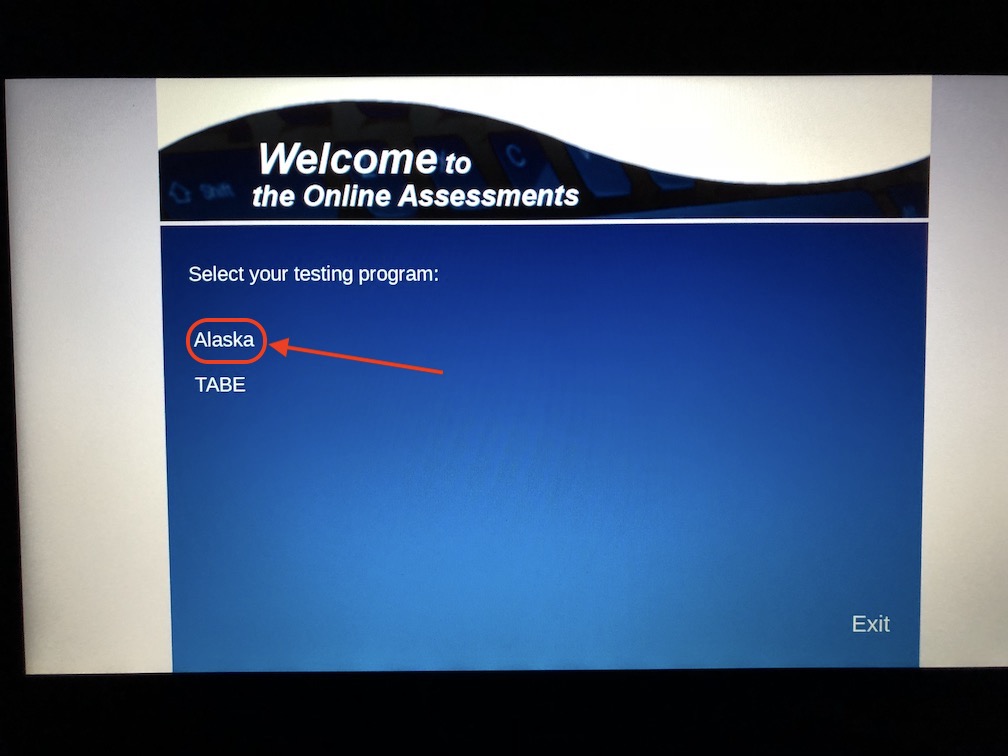
Next, select the Alaska program (if you receive an error stating "Configuration Not Found," follow the directions here to proceed):
On this screen, you can select the Online Tools Training link to have your students take practice tests, or you can select Test Sign In to get your students into the actual state tests. If you're running into issues getting either of those to run, click on the greyed-out checkmark in the lower-left corner to access the System Readiness Check:

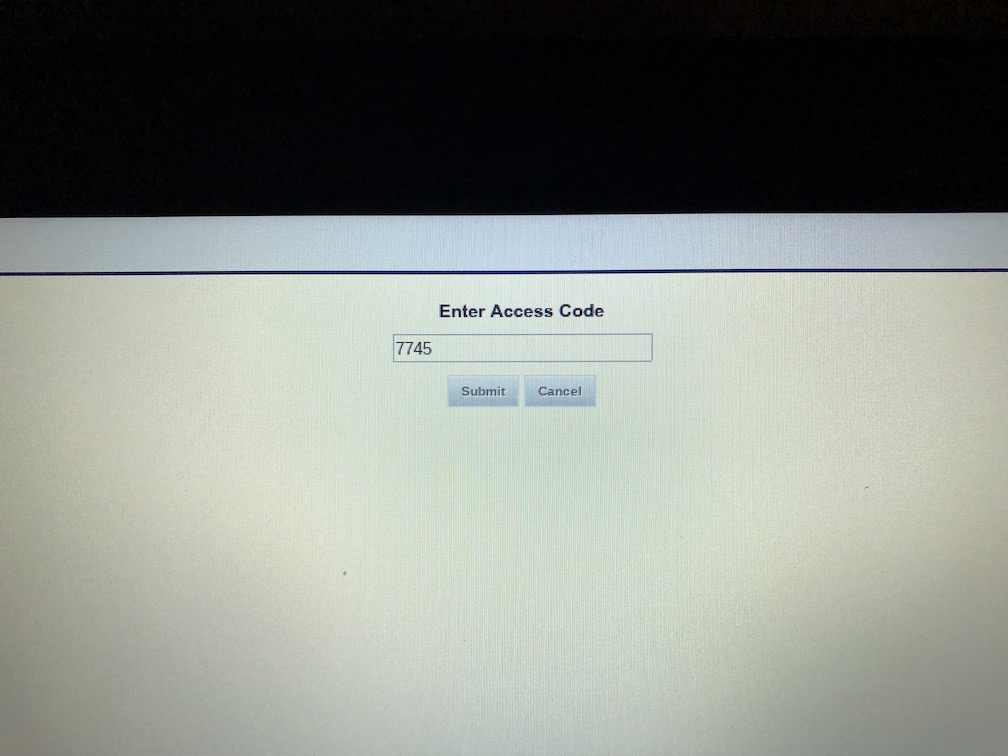
To test your device for readiness, enter the access code of 7745:
Here is a sample of the readiness results page:
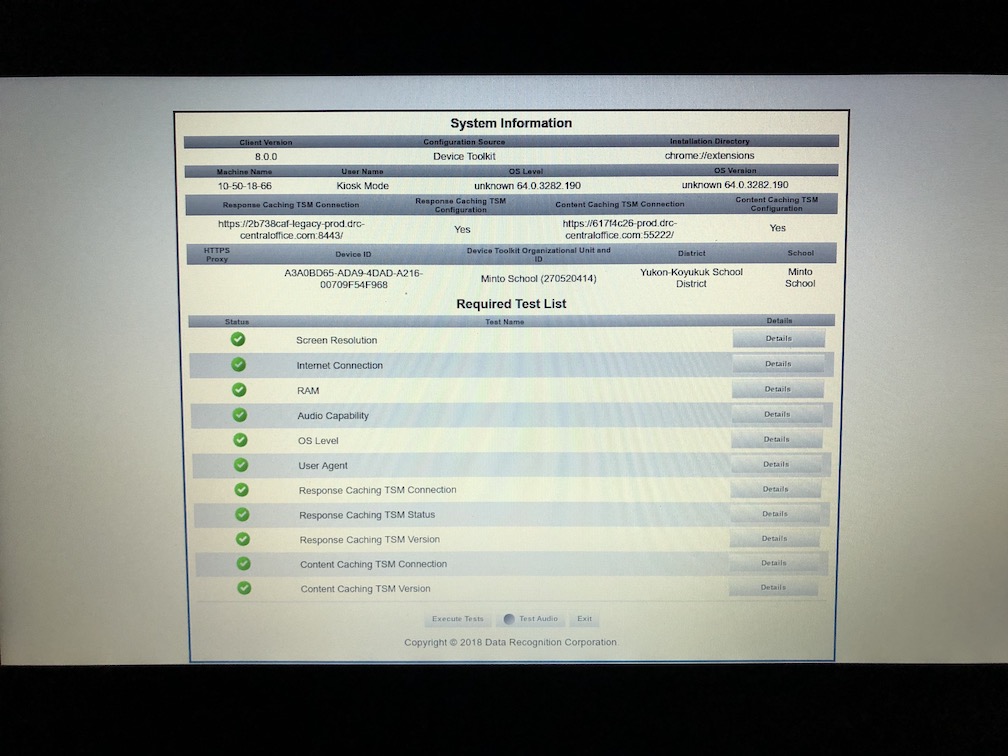
If all of the checkmarks are green like they are above, you're good to go! If any of these elements fail the readiness test, please click on the Details link in the right column and email support@yksd.com with the exact error message.
Comments
0 comments
Please sign in to leave a comment.